
Soter user guide
Documentation updated: 10 October 2026. Desktop: Windows and Linux.
Soter brings command-line programs into one desktop workspace. Save a command as a launcher, give each terminal a useful name, and use the overview to work with several terminals at once.
Find a task
| I want to… | Go to |
|---|---|
| Install Soter and open my first terminal | Installation |
| Save a command, choose a shell or set environment variables | Launchers |
| Name, arrange, search or use several terminals | Terminals and overview |
| Find a session, end a run or run a command again | Sessions and closing |
| Change appearance or find a shortcut | Settings and shortcuts |
| Keep separate launcher and settings workspaces | Separate profiles |
| Use the Soter that opens after a Logonomic crash | Soter for Logonomic |
| Back up settings or investigate a problem | Help and local data |
Installation
For Soter Free, choose your operating system on the downloads page. For Soter, use Already purchased Soter? on that page to access your installer and activation details.
On Windows, open the downloaded installer's Properties. If Unblock is shown, select it and apply the change. Run the installer and follow its instructions.
Linux downloads offer AppImage, .deb and a .run installer. The AppImage and .deb packages target Ubuntu 24.04 x86-64. Choose the instructions for your downloaded format and substitute its actual filename in the examples.
For AppImage, make the file executable and run it directly:
chmod +x ./soter_free_v0.9_linux_x64.AppImage
./soter_free_v0.9_linux_x64.AppImage
The first launch presents the licence and prepares a persistent local program
copy. Open the AppImage again for later runs. If FUSE is unavailable, add
--appimage-extract-and-run. To remove its local copy, finish the sessions and
run the same file with --portable-remove, then delete the AppImage if desired.
For .deb, install through your package manager, for example:
sudo apt install ./soter-free_0.9-1_amd64.deb
Complete the licence prompt, then launch Soter Free from the desktop application menu. Use the package manager to uninstall this format.
For .run, make the installer executable, run it and follow its instructions. Launch Soter from the desktop application menu after installation. Setup may request administrator privileges; ordinary use runs as your own user.
Activation and replacing an installation
When Activate Soter appears, choose Sign in with browser and complete the Varinomics account sign-in and approval there. Return to Soter and let activation finish. The activated release can subsequently use its cached activation offline.
To replace an installation, finish your terminal work and close Soter. For Windows and Linux .run installations, uninstall using the installed soter_maintenance tool, then run the replacement installer. For .deb or AppImage, use the removal method above. Your saved launcher and profile settings survive removal. Keep a backup before changing the installation.
Open a first terminal
- In Launchers, select +. Soter creates a launcher and opens its editor.
- Give it a name such as Project shell.
- Choose PowerShell on Windows or bash on Linux. Leave Script and Environment empty for an interactive shell.
- Click the launcher's badge or name to start it. The terminal appears in the middle workspace.
A launch begins in your home directory by default. Use Start in to choose another initial directory, or use one of the runner examples below to let the script change its directory.
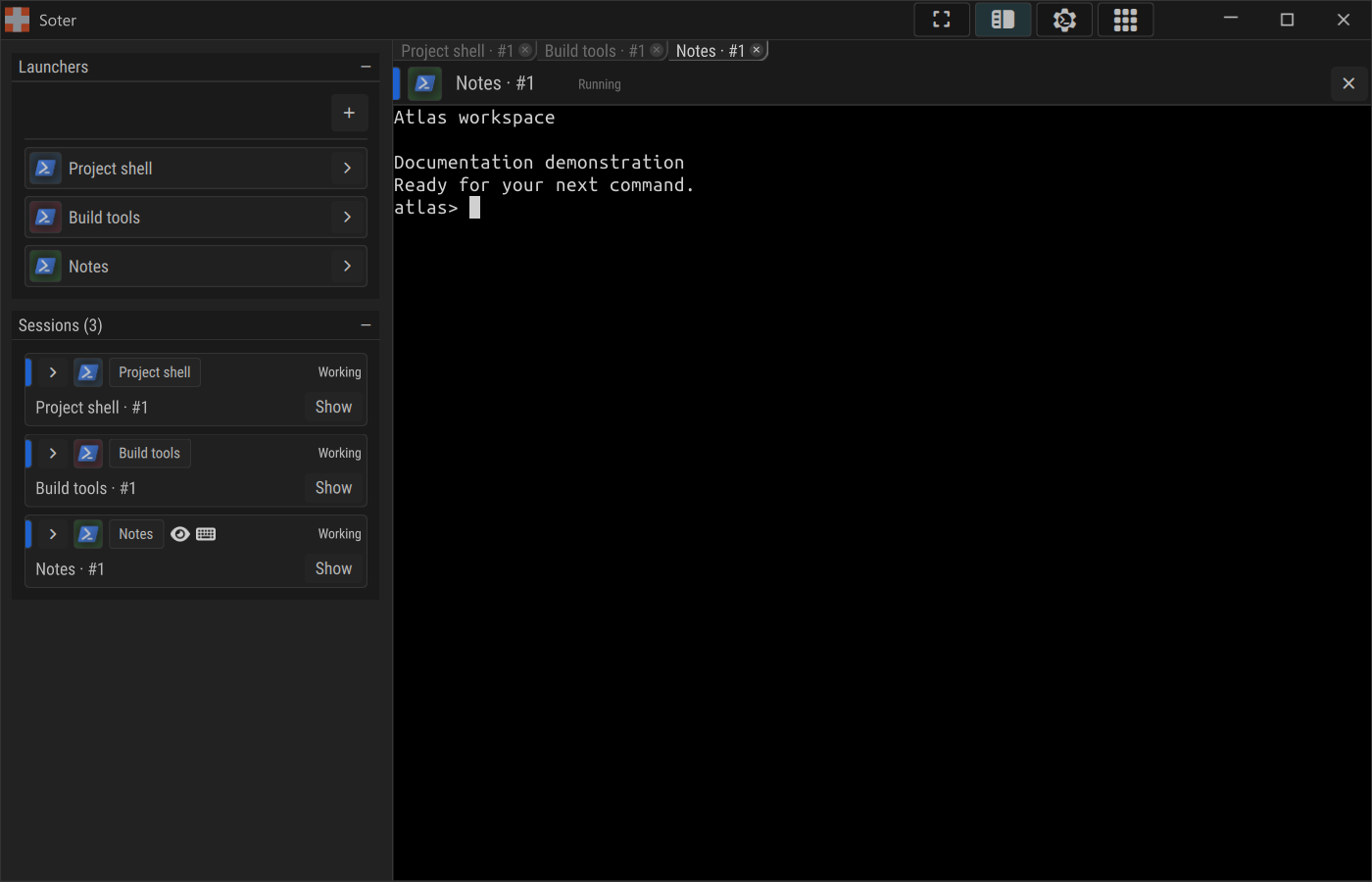
Launchers and Sessions are on the left, with the terminal workspace beside them. The grid button in the title bar opens the overview. Select the image to view it at full size.
Launchers
A launcher is a saved command. Editing it affects future launches.
Use the disclosure arrow at the right of a launcher to open its editor. Choose a descriptive Name, a runner, a Script, and optional Environment entries. Changes save automatically. If Soter reports an invalid field, correct it before launching or leaving the editor.
Start in sets the initial directory for future terminal launches. Leave it empty to use Home. Relative paths are resolved against Home; the folder button fills the field with an absolute directory. An explicit path that is unavailable or is not a directory refuses the launch. Scripts can change their directory later, and this setting does not change Soter's own directory or a running terminal.
Environment applies to every runner, including Direct. Enter one
KEY=value assignment per line. The launched program inherits the environment
with these values applied; editing them affects future launches.
Choose a runner
| Runner | What Script means |
|---|---|
| PowerShell | PowerShell commands, run with Windows PowerShell (powershell.exe). The shell stays open after the script. |
| cmd | Windows command-prompt commands. The shell stays open after the script. |
| bash | Bash commands. An empty script opens an interactive shell; a nonempty script runs with bash -lc and ends when the script finishes. |
| Direct | An executable and its arguments, without a shell. Script must be nonempty. |
The selected runner must be installed and discoverable on your machine. Choose the runner that understands your command's quoting and syntax. Direct does not interpret shell pipelines, redirection or shell built-ins.
For a Windows PowerShell launcher that opens a project shell, use:
Set-Location 'C:\work\atlas'
For a Linux bash launcher that opens an interactive project shell, use:
cd "$HOME/work/atlas" && exec bash -i
For a Linux bash launcher that starts a development server, use:
cd "$HOME/work/atlas" && npm run dev
Replace the paths and commands with your own.
Environment variables
For any runner, enter one KEY=value assignment per line:
PROJECT_MODE=development
DATA_ROOT=%HOME%/work/atlas/data
Blank lines are ignored. Names must be valid and unique. Values are literal:
do not add shell-style quotes unless the quote characters belong in the value.
%NAME% expands a variable from the environment in which Soter started. It
does not refer to another assignment in this field. Use existing variables
appropriate to your operating system, or write an explicit path.
Programs inherit Soter's environment along with the launcher assignments.
To delete a launcher, expand it and use the trash button beside Name. Deleting the saved launcher leaves its existing terminal runs open.
Terminals and overview
Name and arrange terminals
Click the editable title in a terminal header and enter a short note such as Atlas tests. Press Enter or move focus away to save it; Esc cancels the edit. Clearing your note restores the automatic title.
Drag middle-workspace tabs to reorder them or move them into another group. Drop on a split target to place views side by side or above one another, and drag dividers to resize them. The middle tab and split arrangement starts fresh when you reopen Soter.
Use Show Sidebars/Hide Sidebars in the title bar to make more room. Side panels can be collapsed from their headers. Drag a panel header to rearrange it, or press Ctrl+E to show the panel movement arrows.
Work in the overview
Select Show terminal overview in the title bar. It presents the available terminals together, including terminals behind other tabs, and lets you work directly in each one. Close terminal overview returns to the normal workspace.
Use a tile's Enlarge terminal and Return terminal to overview buttons to expand it and return. Scroll the overview to reach terminals beyond the viewport.
The overview has separate controls for Set minimum terminal tile size and Restore automatic overview arrangement. Choose Compact, Standard, Large, or a custom minimum size. The minimum size is saved. Restore resets the automatic tile arrangement. Drag a tile header to reorder terminals and tile boundaries to adjust their sizes.
Wheel input over a terminal normally belongs to that terminal. Use Alt+wheel to scroll the overview vertically and Shift+wheel to scroll it horizontally. The outer scrollbars move the overview; a terminal's own scrollbar moves its retained output.
Copy, paste and search
Drag across text to select it. If the running program handles mouse events, hold Shift while dragging to select locally. Ctrl+C copies a copyable selection and clears it. With no copyable selection, Ctrl+C goes to the program, where it commonly interrupts a command.
Paste with Ctrl+V or Ctrl+Shift+V. Right-click also pastes unless the program handles it; Shift+right-click uses local paste. Review pasted commands: newlines can execute them immediately.
Press Ctrl+F to search retained output. Enter text, then use Enter, F3 or Ctrl+G for the next match; add Shift for the previous match. Esc closes search. Search is literal and starts with Match case enabled. Clear Match case to include text with different letter case. Search covers retained terminal text, including output above the visible area. It cannot recover text discarded by the scrollback limit.
Use the terminal scrollbar to read earlier output and return to the bottom for the latest output. Page Up/Page Down scroll normal-screen history when available; otherwise they reach the running program.
Sessions and closing
The Sessions panel lists the terminal runs open in this Soter window. Select a session's terminal badge to reveal it. Expand a row to inspect its program, output/status, launch directory and identifying details. A row can remain visible after its program has ended so you can read the final output.
To select several rows, use Ctrl+click to toggle individual rows and Shift+click to select a range. Right-click a row for Remove or the corresponding multi-session removal action.
Finish the work before closing a run.
| Action | Effect |
|---|---|
| Terminal header Close terminal or tab close | Ends that terminal run. |
| Remove in Sessions | Ends the selected runs. |
| Close the standalone Soter window | Ends all its terminal sessions. |
Start the launcher again for a fresh terminal run.
Settings and shortcuts
Open the title-bar Terminal settings (all terminals) button, or press Ctrl+, inside a live terminal. Font, size, color scheme and scrollback changes apply across terminals and future launches. Use Ctrl+wheel in a terminal to change the shared font size.
The scrollback budget limits retained output; when it fills, the oldest output is discarded. Save important output using the program's logging or redirection options.
When Terminal settings opens without a live terminal, it shows Copy on selection (default). This saved default is initially off and applies to future launches. Changing it updates live terminals that have no local override. Press Ctrl+, in a live terminal to set Copy on selection (this terminal). Its choice applies to that live terminal and survives font, color-scheme and theme changes. New terminals use the saved default.
Use the sun or moon button in the title bar to switch between light and dark theme, including before opening a terminal. The icon shows the theme it will switch to. Double-clicking the Soter cross also switches themes. Soter remembers the choice. Terminal color schemes can be saved separately for the two themes.
Start a terminal before entering full screen. On Windows and Linux, use F11 or the title-bar full-screen button to enter or leave full screen. On macOS, press Control+Command+F or choose View → Enter Full Screen / View → Leave Full Screen from the menu bar. In full screen, move the pointer to the top edge to reveal the macOS menu bar. Full screen and terminal overview are independent. Esc closes an active terminal search or cancels a title edit when those controls have focus.
| Action | Shortcut or gesture |
|---|---|
| Copy selected text / send interrupt without a selection | Ctrl+C in a terminal |
| Paste | Ctrl+V, Ctrl+Shift+V, or right-click |
| Select / paste despite program mouse handling | Shift+drag / Shift+right-click |
| Search retained output | Ctrl+F |
| Next / previous search match | Enter, F3, Ctrl+G / add Shift |
| Terminal settings | Ctrl+, |
| Shared terminal font size | Ctrl+wheel |
| Scroll overview vertically / horizontally | Alt+wheel / Shift+wheel |
| Save / cancel a terminal title edit | Enter / Esc |
| Toggle full screen | F11 (Windows/Linux); Control+Command+F (macOS) |
| Show/hide side-panel movement arrows | Ctrl+E |
| Toggle light/dark theme | Title-bar sun/moon button, or double-click the Soter cross |
Separate profiles
Standalone Soter supports separate user profiles for different work contexts or a clean configuration. Start it with an absolute profile directory:
& 'C:\Program Files\Varinomics\Soter\soter.exe' `
    --user-data-dir 'C:\Users\your-name\Soter Profiles\Work'
For a Linux .deb installation:
/opt/varinomics/Soter/soter --user-data-dir /home/your-name/soter-profiles/work
For an AppImage, pass the option after its filename. The form
--user-data-dir=<absolute-directory> also works. Supply the option once;
missing, empty or relative paths and repeated options are errors.
Soter creates a new directory if needed and starts it with empty launchers and default settings. An existing profile reuses its saved data. Include the option each time you open that workspace: omitting it opens your existing default profile. For a Windows shortcut, add it after the executable in Target and quote paths containing spaces. Soter Free uses the default profile and rejects this option.
On Windows, choose a local directory protected for your user. Network locations, shared writable directories and path redirection are rejected.
Each profile keeps its own launchers, appearance, layout, terminal preferences, cache, local diagnostics and runtime state. Different profiles can stay open together; closing one window does not close another. Starting the same profile again activates its existing window. Activation applies across profiles.
Profiles do not separate project files or external programs' accounts. Configure those programs separately when you need different accounts or data.
Soter for Logonomic
If Logonomic's main window crashes, Soter for Logonomic opens automatically and immediately presents all original surviving terminals in its normal overview. Scroll to reach them all. Recovery information appears alongside them.
Check each terminal's output and prompt, then continue working. Start new sessions in reopened Logonomic.
Terminal settings apply to the original terminals once they are attached in Soter. Appearance changes are saved and shared across those terminals. Each live terminal keeps its own Copy on selection (this terminal) override.
Closing the Soter for Logonomic window leaves the original sessions running. Using Close terminal ends that chosen original session, so finish its work before closing it.
To return terminals to Logonomic, follow Return a recovered terminal to Logonomic.
Help and local data
Common problems
| Problem | What to check |
|---|---|
| A launcher fails to start | Read its error. Check the runner/executable is installed, the script's quoting and any directory paths. For Direct, supply a command. |
| bash closes after the command | A nonempty bash script finishes when its command finishes. Use an empty script for an interactive shell. |
| Soter Free refuses a fifth terminal | Close an existing terminal and wait for shutdown to release one of its four slots. |
| A terminal is missing | Check its workspace tabs, the Sessions panel and the overview scrollbars. |
| Input/state not delivered | Read the header tooltip and inspect the program before retrying input. An unconfirmed command may already have run. |
| Mouse unavailable | Read the warning. Keyboard input may still work. |
| Text looks distorted or overlaps | In Terminal settings, try Glyph only, a monospace font and a standard color scheme. Note display scaling and whether this changes the problem. |
| Activation does not finish | Check the browser approval and network connection; report the displayed error to support. |
Back up settings
Close the Soter window for the profile before copying its configuration. For the default profile, launcher and UI data live under:
- Windows:
%LOCALAPPDATA%\Varinomics\Soter\ - Linux:
~/.config/Varinomics/Soter/, or the equivalent underXDG_CONFIG_HOMEwhen configured.
This includes launchers.json and ui_state.json. Appearance preferences use
HKEY_CURRENT_USER\Software\Varinomics\Soter on Windows and
~/.config/Varinomics/Soter.conf on Linux.
For a separate profile, copy its config, settings,
local-data and data folders together, preserving their layout beneath the
profile directory. config holds launchers, layout and text logs;
settings/Varinomics/Soter.ini holds application and terminal preferences.
local-data holds retained diagnostics, while data is reserved for application
data. The cache and runtime folders can be recreated. A filesystem backup
does not preserve live terminal sessions. Back up project files and external
programs' data separately.
Contact support and find materials
Soter support is available by email. Include the product
version, operating system, exact error and short reproduction steps. Terminal
settings provides version/build information. Logs are in Soter's configuration
directory above; a separate profile also keeps startup logs in runtime.
Include the relevant files if support requests them.
Before sharing logs, terminal output or screenshots, remove credentials and private project information, including source code and prompts.
See bundled-library sources and relinking files for library materials.