
Files, searching, Git history, and reviewing changes
Select a repository, then use Worktree to browse its files, Search to find text, and Git Log to inspect commits. To review changes, choose Show Diff on a file or folder; to share a snapshot, prepare a REVIEW ARCHIVE.
These tools are available in Logonomic Free, Logonomic, and Logonomic Pro. For adding checkouts, see Repositories and CI.
Contents
- Choose the right view
- Browse the Worktree
- Open and edit a text file
- Search throughout a repository
- Edit a single file through Show Diff
- Review all current changes in a folder
- Read Git Log
- Delete a merged branch with Prune
- Prepare a review archive
- Git authentication and unavailable features
- File and search limits
- Standalone Git Log viewer
Choose the right view
| Task | Open | What you can do |
|---|---|---|
| Read or edit a file | Double-click it in Worktree, or choose Show File | Edit and save its current text. |
| Find text across files | Search | Open a result at its matching line. |
| Review and selectively undo local edits | A file's Show Diff | Compare HEAD with the file on disk; edit and save the right side. |
| Inspect staged, unstaged, and untracked changes | A folder's Show Diff | Read each change separately. |
| Inspect earlier changes | Git Log or a folder's Show History | Read commits and compare file versions. |
| Share files for review | REVIEW ARCHIVE | Create a ZIP with tracked files, optional eligible untracked files, and optional Git history. |
HEAD is the currently checked-out commit. Staged changes are prepared in Git's index for the next commit; unstaged changes are subsequent differences on disk. An untracked file has not been added to the index.
Saving in the editor or editable diff writes the file on disk. Use Git in a terminal to stage, commit, push, or mark a merge conflict resolved.
Browse the Worktree
Select a checkout in Repositories, then open Worktree. Click folders to expand them and double-click files to open them. The folder button beside the checkout path opens the system file manager.
Right-click a file for Show File or, when eligible, Show Diff. Right-click a folder or the repository path for Show Diff of its current changes or Show History of its commits.
The tree shows existing files, including hidden and ignored paths. Use change views to inspect deleted files. Selecting another repository changes Worktree and Search; open history and folder-diff tabs retain their original checkout.
Read the status badges
| Badge | Meaning |
|---|---|
| Check mark | Clean file, or a subtree with no tracked changes or untracked paths. |
! | Changed tracked file; hover for its status, such as added, modified, or conflicted. |
? on a file | Untracked file. |
| M / U counts on a folder | Modified tracked paths / untracked paths beneath it; hover for full counts above 99+. |
? on a folder, or in a folder count | Git status or that count is unavailable. |
| No badge | Ignored path, or a file whose Git status is unavailable. |
Folder and repository summaries exclude ignored paths. An untracked nested repository may count as one directory; its inner counts remain unknown until you inspect that checkout separately. If a directory cannot be read or monitored, restore access and refresh before relying on its status. See Working-tree status for examples of complete and unavailable counts.
Open and edit a text file
- Double-click a file in Worktree, choose Show File, or click a Search result.
- Make your edits. An asterisk in the title marks unsaved changes.
- Press Ctrl+S to save.
Opening an already-open file brings its editor forward and preserves unsaved edits. Line Wrap, in the editor or tab context menu, fits long lines to the view without inserting line breaks.
The editor accepts UTF-8 text up to 16 MiB, including UTF-8 with a byte-order mark. Open binary files, larger files, or other encodings with an appropriate external application. Saving preserves the detected newline style and byte-order-mark choice; mixed line endings are normalized to the detected style.
Find and replace inside one document
Press Ctrl+F to find text or Ctrl+H to find and replace. Selected text supplies the initial query. Document search is literal. Match case is off by default; turn it on to match letter case. Repository Search also offers whole-word and regular-expression matching.
| Control or shortcut | Action |
|---|---|
| Enter / Shift+Enter in Find | Next / previous match, wrapping at the document ends. |
| F3 / Shift+F3 | Next / previous match. |
| Select All in the find bar | Select all matches. |
| Replace | Replace the selected match. |
| Replace & Find, or Enter in Replace | Replace and advance. |
| Replace All | Replace matches throughout the document. |
| Escape | Close the find bar. |
| Ctrl+Z / Ctrl+Y | Undo / redo edits. |
Review replacements before saving. The editor also supports the usual select-all, cut, copy, and paste shortcuts, plus Copy Path in its context menu.
Close or reload a modified file
Ctrl+R and Reload from disk load the file's disk version. Reloading unsaved text opens the Reload Document dialog:
| Choice | Result |
|---|---|
| Save | Save your edits first, then reload. If saving fails, resolve the error before continuing. |
| Discard | Load the disk version without saving your edits. A successful reload replaces the draft. |
| Cancel | Keep the current draft and its undo history. |
While this dialog is open for a note, autosave pauses. If reloading fails, the draft and undo history stay available; read the error and retry or cancel. Closing a modified repository file also offers Save, Discard, and Cancel. Copy text you need before choosing Discard.
When another tool changes an open file
An agent, formatter, Git operation, or another editor can change a file while you have it open. Use Reload from disk to read the new version. Toggle automatic reload remembers a per-file preference, initially off; automatic reload applies only when the document has no unsaved changes.
If Save reports File changed on disk. Reload before saving., copy your unsaved text somewhere safe, reload, and reconcile your edits with the current file. Saving again does not merge the two versions.
If a file is removed or changed to an unsupported format or size, a failed reload preserves your current text and undo history. Read the error, then restore or repair the disk file before trying again.
Notes use the same editor with autosave. Follow the Notes guidance for saving, reloading, and exporting a copy.
Search throughout a repository
- Select the checkout and open Search.
- Enter text in Search for: and choose any matching or file-pattern options.
- Click Search or press Enter.
- Click a matching line to open its file at that occurrence.
Search reads saved files on disk. Save editor changes first if you want to search them. Results are grouped by relative file path; click a hit rather than its file heading. If files change afterward, rerun the search to update positions.
During a search, the button becomes Cancel; Enter in the query field also cancels. Any retained results from a canceled search are incomplete. Selecting another repository clears the results.
Matching options
| Option | Default | Effect |
|---|---|---|
| Case sensitive | On | Distinguishes Token from token. |
| Whole words only | Off | Matches whole words; letters, digits, and underscores are word characters. |
| Use regular expressions | Off | Interprets the query as a regular expression. |
| Ignore binary files | On | Skips detected binary files. |
Regular expressions match within individual lines. For example, TODO|FIXME finds either marker, and \btimeout_[0-9]+\b finds names such as timeout_30. Correct an invalid-expression error before searching again. Turning off binary skipping does not make those files editable in the text editor.
File and exclusion patterns
File pattern: starts at *.*, which includes all filenames, even those without a dot. Separate alternatives with semicolons or commas:
| Pattern | Scope |
|---|---|
*.cpp;*.h | C++ source and header filenames. |
*.qml | QML filenames. |
src/* | Paths below src. |
* | All eligible filenames. |
A pattern containing / matches a repository-relative path; otherwise it matches the filename. Backslashes are accepted as separators. Exclusion pattern: removes matches, including descendants of excluded folders; for example, build/*;vendor/*. The dropdowns retain recently used patterns.
Search includes hidden project files and folders, including .github and .gitignore. In a Git worktree, tracked files stay eligible even when they match Git ignore rules; those rules exclude matching untracked files and folders. Included nested worktrees use their own Git rules. Ordinary folders can be searched too.
File and exclusion patterns apply to all these files. Git administration for the selected repository and nested worktrees found by Search is excluded. Search does not follow symbolic links or Windows junctions below the selected folder. Clearing the exclusion field does not include Git-ignored untracked files. No matches covers only the saved files included in the search; check excluded files directly when you need to rule out a match there. See File and search limits for the defaults.
If a result is missing, check saved disk content, case/word options, include/exclude patterns, and Git ignore rules for untracked files. Results truncated. means you should narrow the query or file scope. For a broad folder search, select an individual checkout to narrow the scope. If Git or a directory is unavailable, correct the reported problem and retry.
A broad folder search can fail on damaged or stale Git metadata in a nested repository. Select the valid checkout directly to narrow the search, and repair the damaged repository separately.
Edit a single file through Show Diff
Use a file's Show Diff to compare its committed version on the left with its current contents on the right, then selectively edit or restore text.
- Save any existing editor edits to the file.
- Choose Show Diff from Worktree or the file editor's context menu.
- Move between changes with Next / Previous or F7 / Shift+F7.
- Edit the right side, or select a change and use the copy/merge actions below.
- Click Save or press Ctrl+S.
- Choose Return to Editor from the context menu when finished.
The left side is HEAD, or an empty base for an eligible newly staged file. The right side includes the combined result of staged and unstaged edits. To inspect those layers separately, use a folder diff.
Select, copy, merge, and undo
A highlighted group of changed lines is a hunk. Select the rows to change, then use Copy ⇉ to copy their committed contents from left to right. This can undo your local edits. The left pane is read-only.
The right pane's context menu also offers:
| Action | Result in the selected range |
|---|---|
| use other | Use the left-side text. |
| use both (this one first) | Keep the right-side text, followed by the left. |
| use both (this one last) | Keep the left-side text, followed by the right. |
| use whole other file | Replace the entire right-hand result with the committed file. |
These actions take effect on disk when you save. Review combined text for duplicate lines; use whole other file can discard every local text edit. Ctrl+Z undoes an edit or merge action; Ctrl+Y or Ctrl+Shift+Z redoes it.
Saving and leaving safely
Save writes the worktree file and leaves staged content unchanged. If another tool changed the file or Git base after the diff opened, the write is refused. Preserve any proposed text you need, choose Discard Merge and Return, and reopen the diff against the current state. For a temporary permission failure, fix access and retry Save.
Unsaved merge changes or unresolved write errors prevent closing the comparison. Save or choose Discard Merge and Return; discarding does not undo edits already saved to disk. Unsaved documents can also prevent normal application exit. Save before exiting: a restored layout does not restore unsaved merge results.
Saved; editor not refreshed means the disk write succeeded. Reload the original editor before continuing there.
What can be compared here
Editable diffs support ordinary modified and newly staged text files. They refuse untracked files, conflicts, renames, deletions, type changes, linked paths, Git-filtered content, unsupported text formats, and changes to the final newline or byte-order mark. Metadata-only changes also have no editable text comparison.
Read the refusal notice. Use a folder's read-only Show Diff to inspect unsupported changes, and an ordinary editor or Git tool to change them.
Review all current changes in a folder
Right-click the repository path or a changed folder in Worktree and choose Show Diff. Select a row in the left-hand list to read its detail on the right.
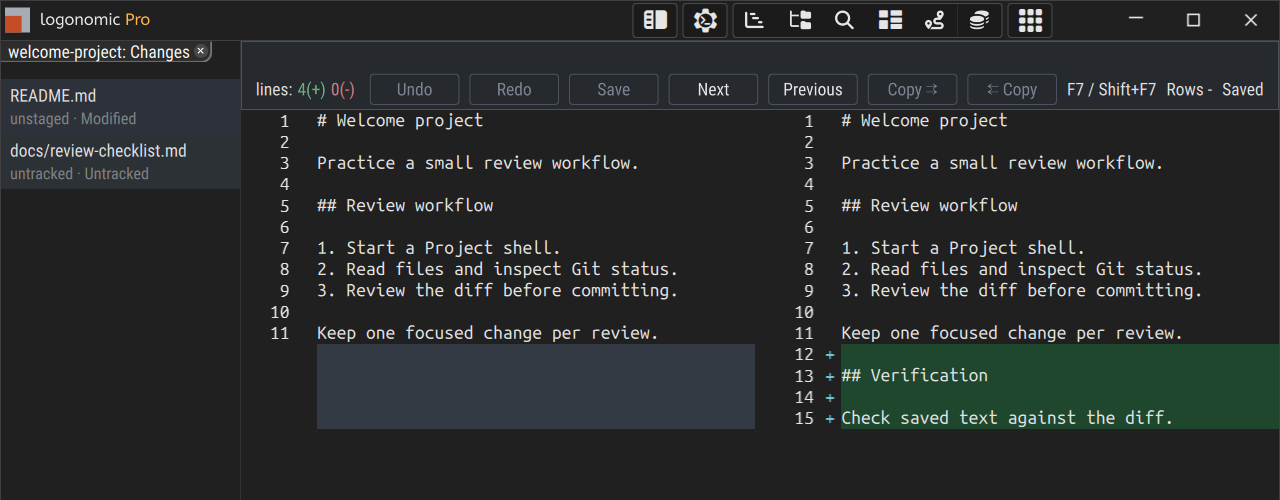
A folder comparison lists unstaged and untracked changes; the selected README shows its added verification section. Select the image to view it at full size.
| Layer | Comparison |
|---|---|
staged | HEAD against the index. |
unstaged | The index against the file on disk. |
untracked | An empty file against the new file. |
conflict | Conflict information; no single text comparison. |
After git add followed by another edit, the same path has both staged and unstaged rows. For changes crossing a folder boundary, incoming means moved into the folder, outgoing means moved out, and within means stayed inside it.
This view is read-only. You can navigate, copy, and find text; use the file editor or editable file diff to make changes. Click Refresh directory changes after editing or Git operations. The tab remains tied to its original directory when you select another repository.
Binary, submodule, type-change, conflict, unreadable, and oversized entries can show an explanation instead of text. Metadata-only changes may show a raw patch. Correct an access or Git failure and refresh; use Git directly for changes beyond the detail limits.
Session-selected and supplied change collections
Ask an agent in a Logonomic-managed session to show its changed files. It can open Session-selected changed files through the display-changes command.
That view shows current repository changes at the paths the session selects. If several people or sessions edited a file, it can include all their changes; it is not an authorship record. Refresh updates those paths' current changes.
An integration can also supply a Changes collection through a manifest, described in the same command reference. Supplied collections may have no refresh control. These temporary views are not saved snapshots of the session's work.
Read Git Log
Open Git Log from repository details, or Show History from a folder in Worktree. Select a branch and click a commit to expand its message and changed files. Reading another branch's history leaves your checkout unchanged.
History uses local Git data. Fetch through Git, then refresh, when you need new remote commits.
Choose a branch and date range
From and To initially cover the previous month through today. Enter dates such as 2026-09-01, or clear a bound for an open-ended range. Both endpoint days are included. Press Enter or Refresh to rerun the query.
The text filter searches message, author, email, commit identifier, and date. It ignores case and requires every whitespace-separated term to match somewhere: alice timeout requires both terms. Dates use the commit's committer date, displayed in local time.
A text search examines the requested branch/date/folder history and shows up to the 500 newest matching commits. Older matches can be found without changing dates. When more than 500 commits match, narrow the text or date range to see other matches. A failed or cancelled search does not present a partial list as a complete result.
Compare files from history
Expand a commit, then right-click one of its changed files:
| Action | Comparison |
|---|---|
| Compare with Base | The commit's first parent against that commit; an initial commit uses an empty base. |
| Compare with Working Tree | The committed file against the current file on disk. |
| Copy Full Path | Copies its path in the current checkout. |
| Open in Explorer | On Windows, reveals the current file or closest existing parent. |
For merge commits, Base is the first parent. Comparisons are read-only; use F7 / Shift+F7 to navigate and copy text as needed. If text cannot be compared, the view explains why. Closing a Git Log view also closes its comparison tabs.
The Working tree changes row
Working tree changes appears above commits when the actual checkout has changes in scope. It remains about that checkout even when you browse another branch, and is independent of the commit filters.
Select it to inspect staged, unstaged, and untracked work. Compare with Base compares current content with HEAD, or an empty base for additions. Compare with Working Tree is disabled because this row already represents current files.
A directory's history
Show History on a folder limits commits and changed files to that scope, including moves into or out of it. Open another folder's Show History when you want a different scope; an existing tab retains the directory it was opened for.
Delete a merged branch with Prune
The branch dropdown shows Prune merged branch for eligible merged branches. Current branches, branches checked out in linked worktrees, default branches, unmerged branches, and branches lacking trustworthy safety information are protected from the corresponding deletion.
Here, merged means the branch tip is an ancestor of the default-branch tip used for the check. For a local branch, that is normally its upstream remote's default branch, falling back to origin; a remote branch is checked against its own remote's default. Repositories without remotes use their locally identified default branch. Squash or rebase integration can leave the original branch tip outside that ancestry, so Prune may remain unavailable even when its changes have been incorporated.
- Select the branch in Git Log and click Prune merged branch.
- Check the name in Delete merged branch "…"?
- Choose the intended Remote, if several are offered.
- In Delete, choose Local branch, the named remote branch, or Local and [remote] remote.
- Click Prune to delete that scope, or Cancel to leave it intact.
Remote deletion affects the shared repository. Check the scope carefully. Prune removes the chosen branch names; it leaves commits retained by other branches and checkout directories intact.
If Git information or the branch tip changed, deletion can be refused. Refresh the log and fetch current tracking references as needed before selecting again. An unavailable action can mean safety information is missing, rather than that the branch is unmerged.
Deleting local and remote scopes can partially succeed. Read which scope was deleted and which remains before retrying; a successful deletion is not rolled back when the other fails.
Prepare a review archive
In repository details, use REVIEW ARCHIVE to create a shareable ZIP.
- Save the files to include, and let ongoing edits finish for a consistent snapshot.
- Leave Include history off for a current-file review, or enable it for Git history.
The date control beside Include history is disabled while history is off.
In a narrow panel, click the calendar button to select or enter the start date.
Leave it blank for all available history, or choose a date no later than today (
YYYY-MM-DD). - Leave Include untracked files off to include only tracked file contents, or enable it to include eligible new files that have not been added to Git.
- Check the file count and estimated size beside Prepare, then click it.
- When preparation finishes, check its final counts and drag the archive icon into a file manager or an application's attachment area.
What is included
The ZIP contains tracked files as they are on disk, including saved local edits and newly staged files. With Include untracked files enabled, it also includes eligible regular files reported by Git as untracked. This option is off by default.
Ignored untracked files stay excluded and are not counted. Other omitted paths are recorded with reasons inside the ZIP: these include untracked symbolic links, junctions, special files, nested repository contents and Git administration. Deleted tracked files, including deleted tracked links, have no file body in the ZIP; the included Git status records the deletion. Submodule contents are not included; prepare a submodule's archive separately if needed.
Preparation refreshes the captured file inventory. An unsupported or incomplete
inventory fails rather than being treated as complete.
The prepared ZIP's review-information folder holds the complete captured list,
with each reason, in UNTRACKED_OMISSIONS.json. Use it to check that the
archive contains the whole change you intend to share.
A review-information folder, normally .logonomic_review_archive, holds a repository summary, the exact captured Git status, and staged/unstaged patches. Requested history is stored as GIT_HISTORY.bundle for full history or GIT_HISTORY.git for a date-limited bare repository. A date limit retains branch tips, even when those commits are older than the date.
Inspect the ZIP before sharing sensitive material. It includes the original local path and can include secrets, personal information and requested commit history. Including untracked files can add local files you have not yet reviewed for commit. The archive does not redact them.
Conflicted Git state and unsupported tracked links prevent preparation. A
tracked filesystem link resolving to a regular file inside the checkout is
copied as that file's contents; escaping, dangling, and directory links are
refused. Untracked filesystem links are omitted. Windows shortcut (.lnk)
files contribute their own bytes.
Refresh or keep an archive
Editing the checkout does not update a prepared ZIP. Click Discard archive, then Prepare for a new snapshot. Discard deletes the ZIP, leaving repository edits intact. If discard fails, the ready archive remains and the error is shown.
Archives are stored in the profile's local review-archives directory, and preparing a replacement can remove older ZIPs for that repository. Copy any archive you want to retain to your own destination.
If preparation fails, correct the reported file, date, ZIP-tooling, or Git error and try again. Missing, unreadable or unsafe selected paths fail preparation; they are not silently dropped from the requested archive. A failed replacement does not remove a previously prepared ZIP.
Preparation reads files over time. Its captured inventory and final size do not guarantee that every file represents the same instant; pause edits while making an archive you intend to share.
Git authentication and unavailable features
Remote Git operations use your Git credentials. If a background check needs authentication, click the status bar's [host] sign-in badge to allow your credential helper to prompt. Hover it for details and check for a browser or helper window. If access is still refused, correct the credentials, SSH setup, or repository permissions before retrying.
CI uses separate gh / glab authentication; see Connect GitHub or GitLab.
If a feature reports a missing Git capability, install a Git version supplying that capability; the error names the required feature and the release that introduced it.
Use a deliberate Git wrapper on Windows
If your organization wraps git on PATH for auditing, credentials, or routing, disable Logonomic's preference for the direct Git for Windows binary:
[git]
prefer_direct_binary=false
See Settings and reference for the active settings location.
File and search limits
| Operation | Limit or supported content |
|---|---|
| Text editor | Readable regular UTF-8 files up to 16 MiB. |
| Editable diff undo | A single edit above 8 MiB is refused. |
| Repository Search | Up to 250,000 candidate files and 50,000 matches. Narrow a truncated search. |
| Review archive untracked inventory | Up to 100,000 paths and 32 MiB of path-list output, excluding ignored files. An incomplete or over-limit inventory stops preparation. This is not a limit on included file contents. |
| Folder change list | Up to 100,000 entries. |
| Folder diff detail | Up to 8 MiB per file; output capped at 32 MiB or 250,000 lines. |
Default Search exclusions are *.cvs*;*.svn*;*.autosave, plus *.obj;*.exe;*.dll;*.lib;*.exp;*.pdb;*.ilk on Windows or *.o;*.so;*.a;*.out on Linux.
Standalone Git Log viewer
If your installation includes logonomic_git_log_viewer, pass a checkout path to open history in its own window:
& 'C:\path\to\Logonomic\logonomic_git_log_viewer.exe' 'C:\work\project'
./logonomic_git_log_viewer /home/me/work/project
Without a path it uses the current directory's repository. The argument opens repository history; use the main application's Show History action for a folder-specific view.
Logonomic and Logonomic Pro also accept --user-data-dir <directory>; Logonomic Free uses its default profile. See Settings and reference for profile selection.